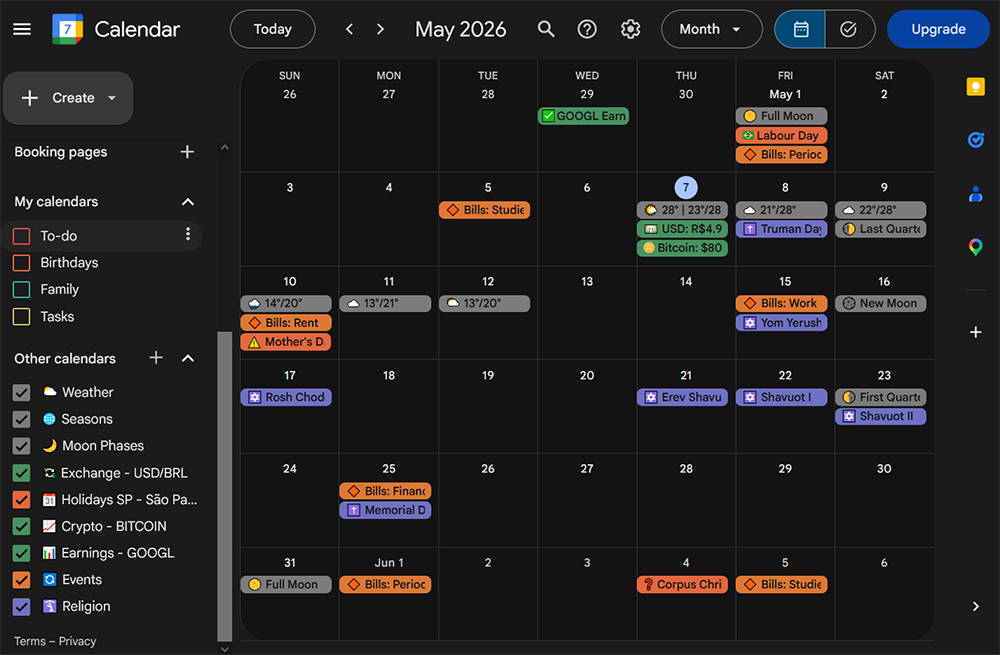
Paste the Super-Calendar WebCal or HTTPS feed link.
Confirm with Add calendar.
Apple Calendar
Open Calendar on macOS.
Choose File, then New Calendar Subscription.
Paste the WebCal link.
Choose refresh settings and save.
Outlook
Open Outlook calendar.
Choose Add calendar.
Choose Subscribe from web or From internet.
Paste the feed URL and save.
Proton Calendar
Open the Proton Calendar web app. Go to Settings, All settings, Calendars, Other calendars, then Add calendar from URL. Paste the HTTPS feed link. The subscription is read-only, appears in the mobile apps after syncing, and may take 4 to 16 hours to refresh.
Android
Try the WebCal subscription first so any compatible installed app can handle it. If no app opens, copy the HTTPS link and use your calendar provider's Add from URL flow; availability varies by provider.
Troubleshooting
If the calendar app rejects webcal://, try the HTTPS version of the same URL.
Calendar apps decide their own refresh interval. Updates may not appear instantly.